
Filing some incoming and outgoing emails
Starting with incoming emails
As you are just testing the systems, we recommend that you select and file unwanted emails from your deleted items folder or junk.
NOTE: CloudFiler will only be able to file emails that are in your business email account
- Select an email so that its preview appears in the Outlook reading pane
- Move your cursor over the purple confidence bars to the right of the TESTING location in the CloudFiler Add-in
- When the CloudFiler icon appears on the confidence bars, click it
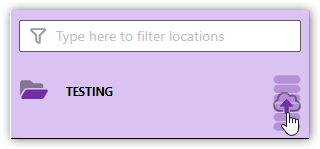
The email will be filed and is likely to disappear from the folder – it will typically be moved to a Filed folder below your Inbox folder in Outlook. This behaviour is configurable and is covered later – so don’t panic!
File at least two incoming emails and ideally ones that contain graphics, as we will want to check that they are shown correctly when you search for them.
Now file an outgoing email
- In Outlook select New Email (typically from the ribbon)
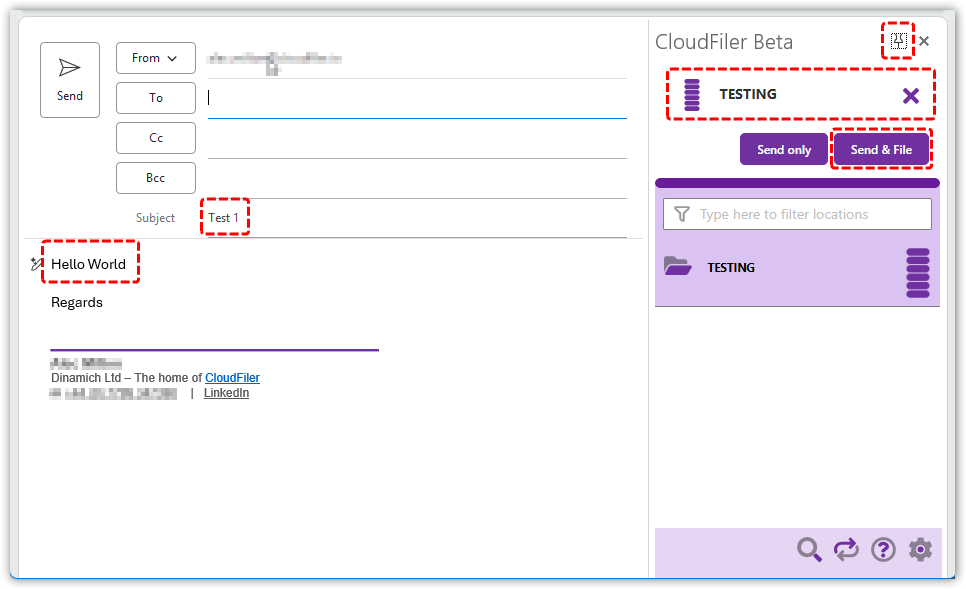
- Click the CloudFiler Add-in from the ribbon menu, pin it and if you are running Classic Outlook, resize it
- Address the email to yourself
- Give it a subject of Test 1
- Type some text into the body of the message e.g. Hello World
- Check that CloudFiler has selected the TESTING location as the filing location as shown below
- Pick Send & File from the CloudFiler Add-in
Next step: Search via Pico