
Mobiles
Download Microsoft Outlook onto your mobile phone and add your business email account to it - CloudFiler won’t work with the native email App on your phone, as Apple and Google don’t provide a way for developers to add features to their Apps.

- Open an email that you would like to file to the TESTING location
- There will be two triple dot menus shown. DON’T click on the ones in the top-right or bottom-right. On Android one of them will be at the top-right and on iOS (iPhones) there will be one in the bottom-right – ignore them
- Click on the triple-dot menu in the top-right of the email preview
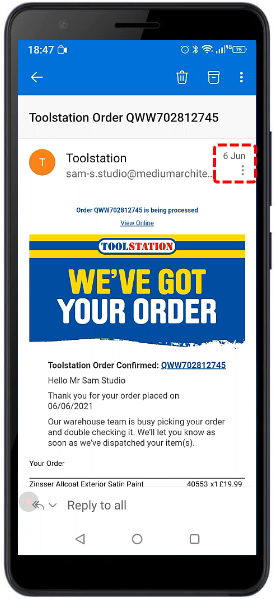
- A menu will partially appear. Drag it further into view
- Click on the CloudFiler icon
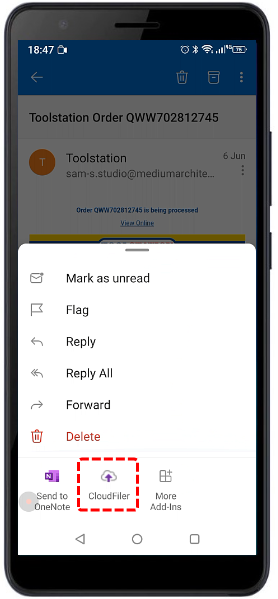
The full CloudFiler Add-in will now appear allowing you to file and search.
- File this email by clicking on the purple confidence bars next to the word TESTING
- Because you could easily misfile when fumbling with your phone, the confidence bars will change into a tick and cross on the first click so you can either continue or cancel the filing process
- Try searching by clicking on the magnifying glass icon in the footer – you may need to turn your phone sideways
- Try clicking on the emails in the search results, they should preview correctly
Filing sent emails from your phone
You can file sent emails too, but Microsoft have yet to provide developers with a way to know that you have hit the Send button, so to file an email you have sent, navigate to the Sent Items folder on your phone and you can then file it from there – the process is the same.
Bookmarking Pico on your phone
If you need to get to Pico frequently, just bookmark the browser page, however note that for security reasons it will time-out after 30 days and you will then need to launch a new session. Each time you search via the bookmarked page the session is extended to 30 days from today, so as long as you revisit the page within 30 days, it won’t time-out.
Next step: Adding locations with a right-click in Windows File Explorer