
Public Folder Exporter
The Public Folder Exporter is provided via the Hub.

Paste the following path into the address bar in Windows File Explorer and then hit <Return>:
%localappdata\CloudFiler\CloudFiler Hub\Apps\CloudFiler.PublicFolderExport
This will take you to where it is installed.
Double-click the file CloudFiler.PublicFolderExport.exe
It will open a Command window like this
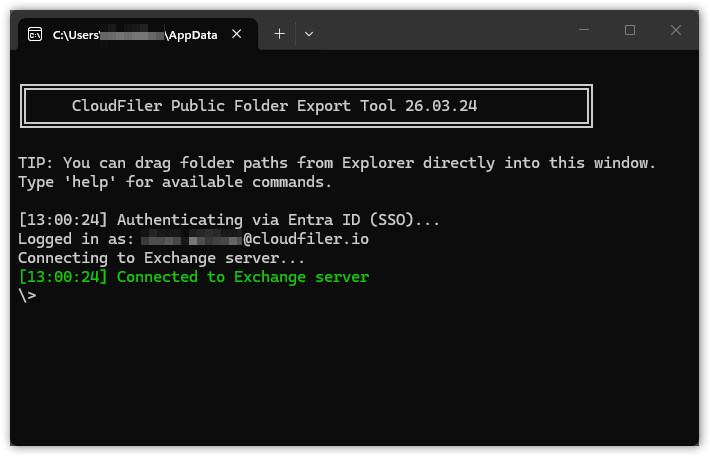
Type help and hit <Return>.
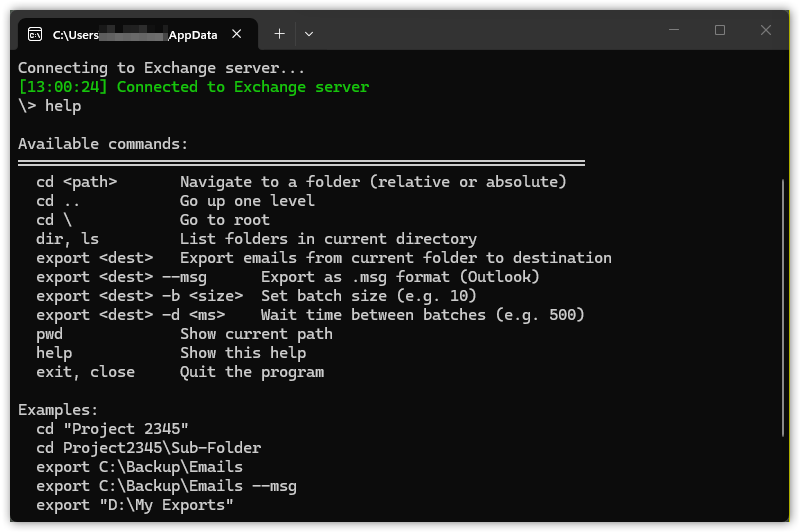
You will see from the Help that you can use DOS style commands to display the folder you are in ( e.g. DIR) and change directory with CD. You can then export the contents to a local or network folder. It will export EML files by default but you can use the --msg command line option to export to MSG too.

Log files
The export tool writes three log files. Two reside in the export destination folder that you gave to the export command, and one lives next to CloudFiler.PublicFolderExport.exe.
The two files in the export folder start with a dot and are hidden by default in Windows Explorer. To see them, turn on View → Show → Hidden items, or open the folder from a command prompt with dir /a.
In the export folder
.export.log
This contains a plain-text log of everything the tool printed to the screen, with timestamps. Every export run into the same folder appends to this file, so it provides a complete history of that export.
Use this file to find out what happened during an export: which folders were processed, how many emails were found, exported and skipped, and any warnings or errors. If an email failed to export, the reason is recorded here.
If you start the tool with --verbose, the log also records one line per email, including the reason each skipped email was skipped (for example, "Skipped (already exported)").
.export-state.json
This tracks how far the export has got through each public folder. The tool uses it to resume where it left off if the export is interrupted (closed, Ctrl+C, network drop). Just run the same export command again and completed folders are skipped while partly-finished folders continue from the last checkpoint.
Do not delete this file while an export is in progress or if you plan to resume it. Deleting it after the export has finished is harmless.
Next to the EXE
files.dat
This lists the Exchange IDs of every email the tool has ever exported on this PC. Before writing an email the tool checks this list, and if the email is already in it, the email is skipped and counted under "Emails skipped (duplicates)" in the summary. This is why an email can be skipped even when it does not exist in the destination folder: it was exported by an earlier run, possibly to a different destination. The list is shared across all exports on the PC and is kept next to the EXE so it survives updates.
To export everything again from scratch, close the tool and delete files.dat.