
Adding SharePoint locations
You can add locations to folders in SharePoint using any of the following four pathing styles.
"Details" Style
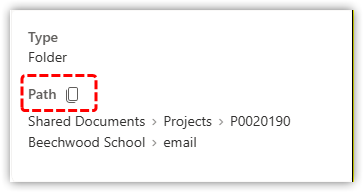
This is the method that we recommend, as the resulting path is short and includes a human-readable path to the folder that could be edited at a later date if you need to move locations, e.g.
https://mybusiness.sharepoint.com/sites/SyncTest/Shared%20Documents/Projects/P0020190%20Beechwood%20School/email
You can copy this style path to the clipboard by expanding the Details on the selected page:
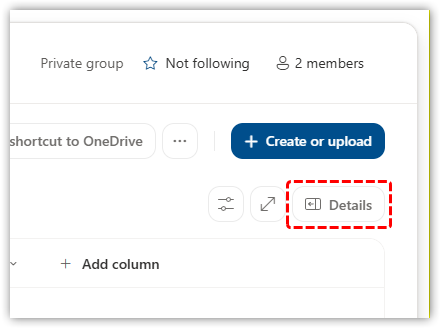
...and then picking the Path link:
"Address bar" Style
This method is not recommended because it creates a long path which includes elements that you couldn't later edit if you needed to move folders in bulk.
https://mybusiness.sharepoint.com/sites/SyncTest/Shared%20Documents/Forms/AllItems.aspx?id=%2Fsites%2FSyncTest%2FShared%20Documents%2FProjects%2FP0020190%20Beechwood%20School%2Femail&viewid=1a4f472f%2Dd967%2D42a7%2D896a%2D7b95804971c&FolderCTID=0x01200060E7275BD82F6BD9F340AF6F6A6D4D3
You can copy this style of path to the clipboard by clicking in the address bar and simply copying the full path. This can also lead to human error which is another reason for not using this method.

"Copy link" Style
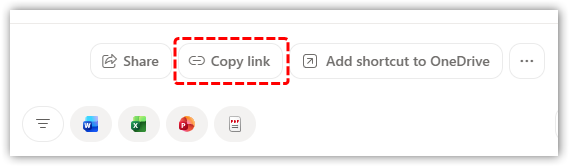
SharePoint provides a convenient Copy link button but we don't recommend this method because the resulting path is not human readable and you couldn't later bulk edit if you needed to move folders in bulk.
https://mybusiness.sharepoint.com/:f:/s/SyncTest/IgDg74VH60aMTIOf1B-LNVlLAKchw6GqgFxR56xQKKGRtI?e=2pXs5p
"Mail Manager" Style
If you have previously used Ideagen's Mail Manager you may have SharePoint locations in this style:
SharePoint:https://mybusiness.sharepoint.com/sites/SyncTest/Shared%20Documents/Projects/P0020190%20Beechwood%20School/email
CloudFiler supports this pathing style so that you don't have to change them.