
Understanding Groups and permissions
The Locations tab on the portal lists the filing locations you have created in CloudFiler.
Depending on your user permissions you may or may not be able to edit locations and you may only see some of those that are in the system.
Role based security
CloudFiler enables you to control which users can file and search each filing location. This is achieved by creating named groups of people e.g. Directors, Human Resources, etc., and then granting one or more groups access to a given location.
For example if you wanted to only allow directors access to a Board Reporting filing location, you would create a group called Directors, add all the directors to that group and then ensure that only that group is able to access the Board Reporting location.
Adding a Group
You can create as many groups as you need and name them as you choose.
To add a Group, click on the Groups tab.

New customers will only have the two built-in groups, All Users and CF Admin. If you have more like the Directors and Human Resources shown in this example, they will have been added by your colleagues. Each column represents a group of people.
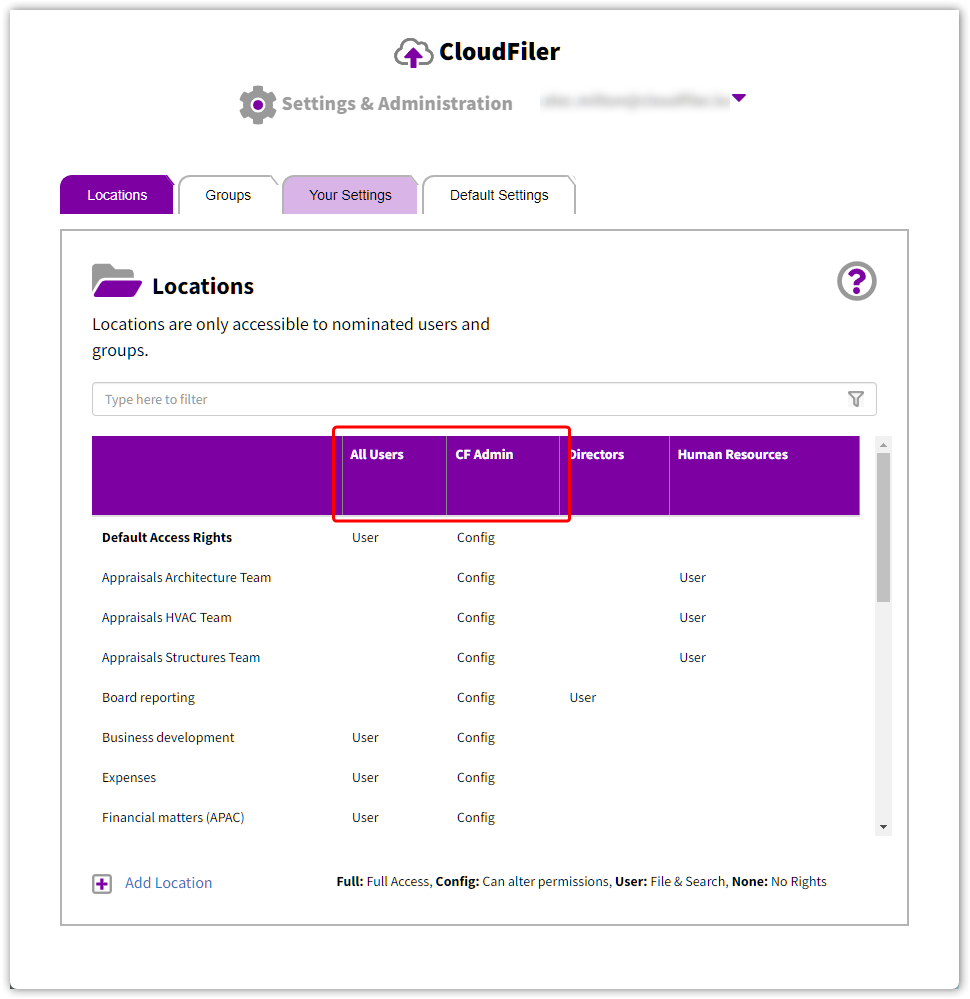
The All Users group is automatically populated with all the users in your Microsoft Exchange email server.
The CF Admin group initially has no members.
The CF Admin group is ideal for your business administrator/s
The name CF Admin stands for CloudFiler Administrators. You will typically add to this group the main administrator/s of CloudFiler and their assistants so that they can create new locations for colleagues and make edits when required, but they won't be able to file into the locations or search them unless they are members of a different group that has User or Full rights on that location.
Understanding user permissions
At the foot of the screen shot above you will find a key that explains the permissions.
Here they are in tabular format.
|
|
Can file |
Can search |
Can edit location names and paths |
Can change permissions |
|
Full |
☑ |
☑ |
☑ |
☑ |
|
Config |
|
|
☑ |
☑ |
|
Edit |
|
|
☑ |
|
|
File & Search |
☑ |
☑ |
|
|
|
Search-only |
|
☑ |
|
|
|
None |
|
|
|
|
For most locations you are likely to apply File & Search access to All Users as this will enable staff to file and search the location but does not give them the ability to edit the location.
It is normal for the CF Admin group to have Config permissions to most locations as this enables members of that group to edit the name and path.
Where members of your business's leadership team need locations that are only accessible to them, ensure that only they have User permissions on those locations and set all other groups to None for those locations. If however the leader wants to be able to edit their locations themselves, change the permission for their group to Full.
Tenant Administrators do not have access to locations unless granted via a group
It is important to understand that whilst tenant Administrators have high-level rights to manage the tenant via the portal, this does not grant them any rights to file & search locations and they will have to be granted access in the same way as other users.
Default Access Rights
When you add a new location it will immediately be given the permissions defined by the special row Default Access Rights which always appears at the top of the list as shown in the example above.
By default the rights are:
All Users = User
CF Admin = Config
All other groups = None
This is appropriate for most businesses as it ensures that newly added locations can be filed into and searched by all users, and that the admin team can edit them.