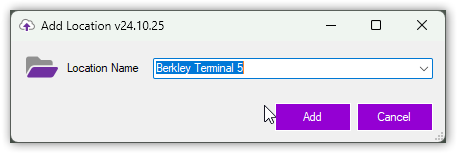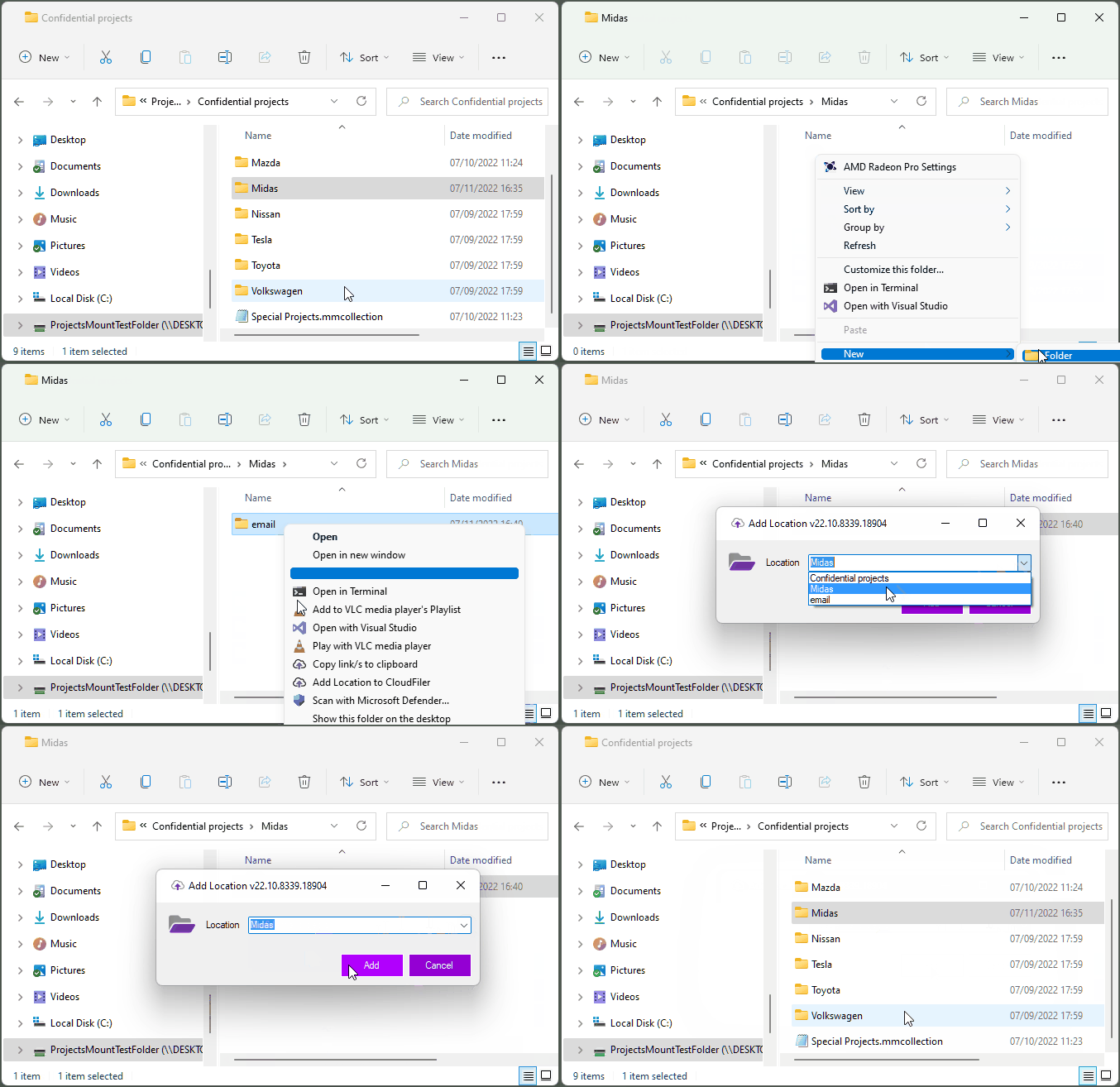
Windows Explorer - Add Location
The Add Location to CloudFiler tool is accessed by right-clicking a folder in Windows File Explorer
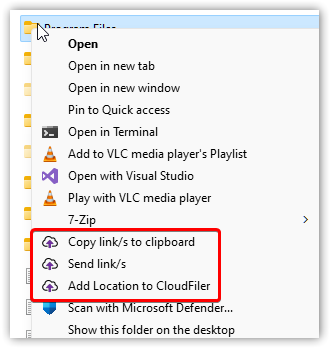

As most customers of CloudFiler who choose to sync their messages to file system folders, also prefer to place messages in a sub-folder (typically called 'email'), CloudFiler defaults to selecting the name of the folder one level above the one you selected.
For example, if your folder is P:\Americas\aviation\Berkley Terminal 5\email , CloudFiler will assume that the location name is Berkley Terminal 5. If that's incorrect, you can either select another part of the folder path that contains the correct name by selecting the down-arrow and picking it from the list, or you can just type a name.