
Signing into the Hub
Signing in
You will need to sign into the Hub to gain its features, but the icon may be hard to find because Windows places it in the hidden icons here:
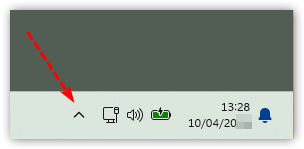

How to make it stay on the task bar
To move it to the taskbar, just drag it onto the chevron and let go:
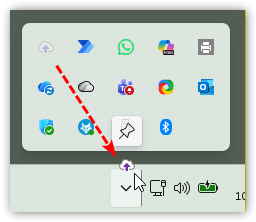
Which will place it in your tray:
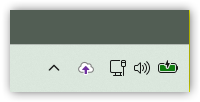
An alternative is to:
- Open the Taskbar settings by holding down the Windows key and press the I key on the keyboard, then select select Personalisation and Taskbar
- Expand the Other system tray icons section and toggle the CloudFiler.Launcher to On
To sign in, right-click the Hub and select Sign In. If you have multiple email accounts, make sure the correct one is selected and then pick Login
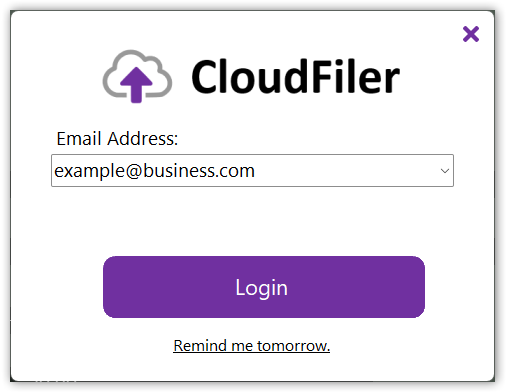
Upon logging in, the Hub will confirm authentication and will automatically close.
Signing out or Quitting the Hub
You can sign out and re-authenticate at any time by right-clicking the Hub icon in the system tray.
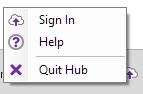
If you sign out, the tray icon remains active enabling you to sign in again.
If you quit the Hub, all processes are terminated and it won't re-start until you next log in.
If you are having difficulties signing in, please follow the advice here.