
The Sync Connector
The Sync Connectors can run on any Windows machine to synchronise emails to your local file system.
Why would you sync messages locally?
Most customers want to keep copies of filed emails in local folders. For example they may have Windows folders for projects that have sub-folders for emails. CloudFiler can sync emails to these folders automatically. If you add locations via the Shell Extension, the path to the folder is automatically registered in CloudFiler. If you add a location via the portal or via the API, you can add a sync path.
How does it work?
The Sync Connector communicates with the CloudFiler services and from time-to-time it will ask whether there are any messages for your tenant that need filing.
If the service has write permissions to the destination folder it will create the file locally. If not, the file is skipped.
File format and naming
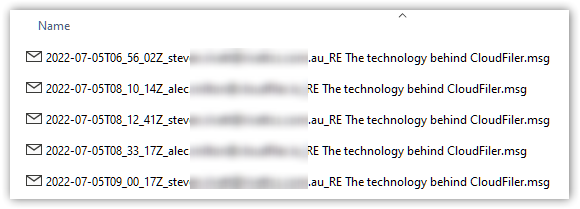
The files are either written in Microsoft's MSG format or the more universally used EML format, so that they open with a double click.
The file names are based on the ISO 8601 standard and the dates are in UTC time so that the server and your local copies share the same time stamp.
Sync SERVICE, NODE or via the Hub?
There are three variations of the Sync Connector, one runs as a Windows Service and is known and the SERVICE variant, one runs as a desktop application and is known as the NODE variant and the third is built into the CloudFiler Hub and is known as the Hub Sync.
|
|
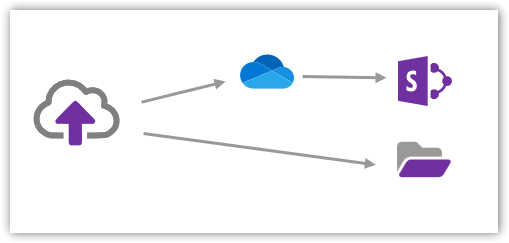
The SERVICE and NODE sync connectorsThe SERVICE and NODE sync connectors are separate applications which are typically installed on a server or the machine of a key member of staff who has access to everywhere, and hence the permissions to sync files to the required folders. They pull the emails down from CloudFiler and push them either into Windows Folders or into OneDrive if the destination is SharePoint. NOTE: If you adopt either of these sync connectors, and have locations that need to sync to SharePoint, you will have to assign OneDrive paths to the locations |
|
|
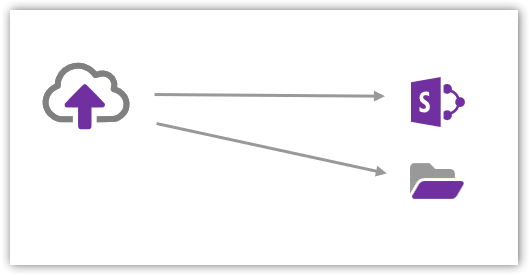
The Hub SyncYou can designate one user to run the sync service. They will need the Hub installed on their PC and will need to sign into it. It will pull the emails down from CloudFiler and push them either into Windows Folders or directly into SharePoint, so long as that user has write permissions to those places. |
As a general rule the Hub Sync is best as it can sync to all storage types: SharePoint, OneDrive, Windows folders, Dropbox, Box, Egnyte, ProjectWise, Synology and other third-party systems.
Detailed guidance on the three options
You can find more detailed guidance on each of the three types of Sync Connector here: