
Sync NODE
The NODE variant of the Sync Connector runs as a desktop App which then gives it access to the same folders as the logged in user.
Installation
Your IT staff will have access to the CloudFiler Installers page and will be able to download the appropriate MSI installer and deploy it for you.
Syncing to third-party storage
Storage systems like SharePoint, Egnyte, Synology, DropBox, Procore, Autodesk Construction Cloud (ACC), Bentley Projectwise, Box, etc., expose their storage in Windows via a desktop connector. In the case of SharePoint, the desktop connector is OneDrive. So these are accessible to the NODE variant and it can therefore wrote to them.
Each user has their own path to the same folder
These local folders provide an ideal way for CloudFiler to transfer filed email files to whatever storage you use without requiring you to configure and authenticate a connection, however as each user's path to the data is unique to them, CloudFiler needs to normalise the path to one that will work consistently for the sync connector. For example:
Project location "Surrey Court" appears like this to Sally:
C:\users\sallyb\projects\Surrey Court\email
but to her colleague George it appears as:
C:\users\georgef\projects\Surrey Court\email
Whereas, if the Sync Connector is running under the user account 'syncuser' it will expect the path:
C:\users\syncuser\projects\Surrey Court\email
CloudFiler's Path Normaliser can resolve this automatically for you. All you need to do is send an email to support@cloudfiler.io with:
Subject line: Path Normaliser - sync username
Body message: Please assign the sync username for our business to: <your sync username>
Once this has been configured by us, your staff can use the Add Location tool to add locations to CloudFiler, and although the paths will be unique to them, our Path Normaliser will feed the sync connector with a path that makes sense to it.
Syncing to Bentley ProjectWise
CloudFiler uses Bentley's Drive App to place the emails in ProjectWise. At the time of writing, Drive was included with Manage licences. You may only need Drive on one machine - if in doubt contact us.
As Drive can't sync to ProjectWise Folders, if you are using these, you will first have to convert them into Work Spaces.
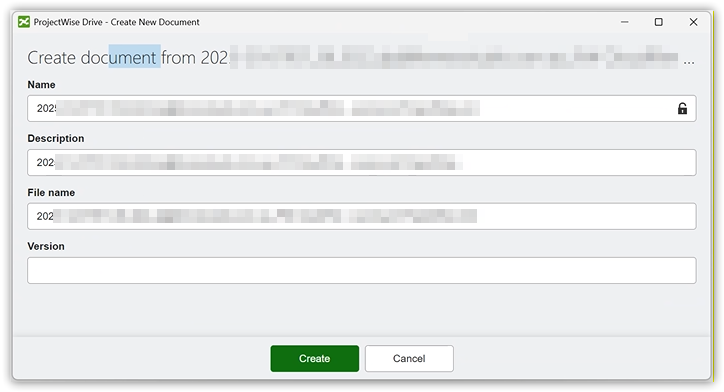
By default Drive will present the Create New Document dialogue for each email that you file, but you can turn this off via the ProjectWise Wizard Manager - please see the ProjectWise documentation for how to do this.
Syncing to Egnyte storage
By default, Egnyte excludes MSG and EML format files from being uploaded. This is detailed in their documentation - look for Excluded from upload and be sure to get your Egnyte administrator to allow these file types to be uploaded.
Running multiple sync services
To avoid clashes we recommend that you only run one sync service per tenant.

Troubleshooting
Take a look at this troubleshooting page if files are not syncing as expected. Sync NODE stopped
Change Log
Check the Change log for patches and new releases.